
Most modern hearing aids pair with smartphones via Bluetooth, but the steps differ depending on your hearing aid brand, phone model, and which version of Bluetooth your devices actually use. If you’ve just picked up new hearing aids or updated your phone and can’t get them to connect, this guide covers the brand-specific pairing process and the most common reasons it fails.
When patients call us stuck on “searching for devices”, the cause is usually one of three things: pairing through the wrong menu on the phone, a phone that isn’t compatible, or hearing aids that haven’t been restarted properly. Other causes include phone software updates that temporarily disrupt the connection, Android permissions that haven’t been granted, or aids that need a firmware update before they’ll stream at all.
Which Phones Actually Support Direct Streaming?
Not all Bluetooth is created equal. Hearing aids use different protocols depending on the manufacturer and when they were released.
For iPhones (Made for iPhone hearing aids)
iPhones stream directly to Made for iPhone (MFi) hearing aids, which covers most current models from Oticon, Signia, Widex, ReSound and Starkey. Newer hearing aids need a reasonably recent iPhone and iOS version, so check the manufacturer’s compatibility list for your exact model. Phonak is the main exception: most of its models connect to the iPhone as a standard Bluetooth device instead (see below). Whether the hearing aid microphones pick up your voice during calls, so you don’t have to hold the phone near your mouth, depends on the model.
For Android (ASHA and LE Audio)
It’s messier. Android 10 and above support ASHA (Audio Streaming for Hearing Aids), but only if your phone manufacturer has enabled it. Recent Samsung and Google Pixel phones generally support it, but support varies across other brands and budget models, so check your hearing aid manufacturer’s compatibility list. Many MFi hearing aids also support ASHA. ASHA streams in one direction only: you hear the call in your hearing aids, but the phone’s microphone picks up your voice. Phonak is the exception again: many of its devices use classic Bluetooth, which works with almost any Bluetooth phone and lets the hearing aid microphones pick up your voice for hands-free calls.
Newer hearing aids and phones are also starting to support Bluetooth LE Audio, a newer standard designed to replace ASHA and older approaches over time. Support still depends on both the phone and the hearing aid, so check compatibility before relying on it.
If your Android phone doesn’t support ASHA or your hearing aids don’t use classic Bluetooth, you’ll need an external streamer: a small device worn around your neck that acts as a Bluetooth bridge. It’s less convenient, but it works.
Step-by-Step Pairing: By Brand
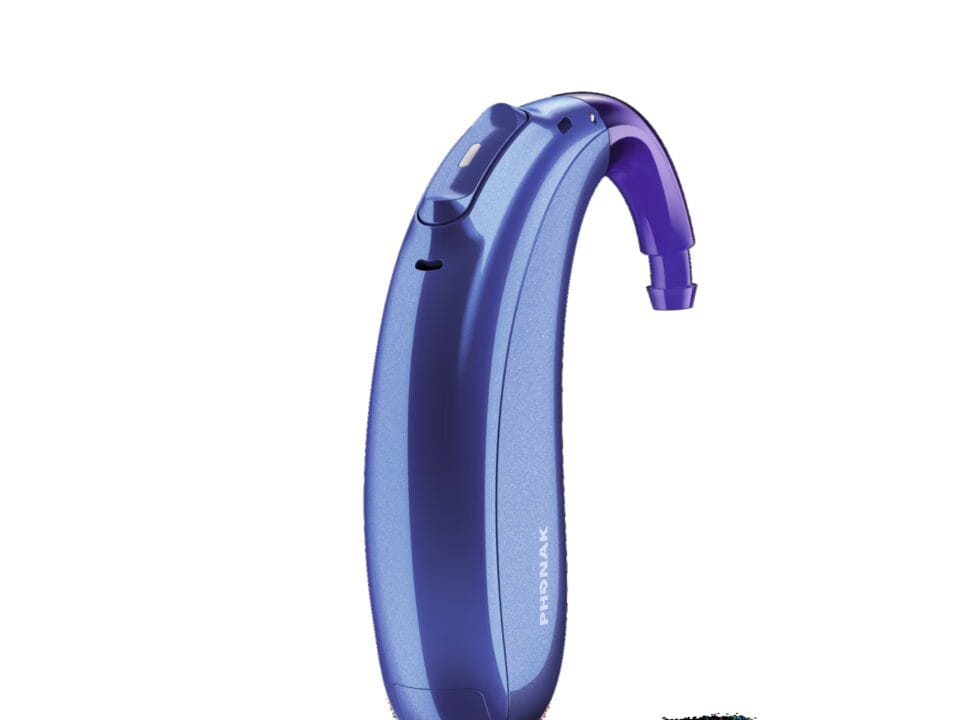
Phonak (myPhonak App)
Most Phonak devices use classic Bluetooth, which makes them compatible with almost any Bluetooth phone but changes the pairing process. If you have one of Phonak’s newest models (Infinio Ultra or later) and have already set up the myPhonak app, Phonak says the hearing aids were paired during that setup.
iPhone
- Open your phone’s Settings > Bluetooth and make sure Bluetooth is on.
- Turn off your hearing aids (open the battery doors, or place rechargeable aids in the charger for 10 seconds, then remove).
- Turn the aids back on. They should enter pairing mode automatically for three minutes.
- On your iPhone, tap the hearing aid name when it appears under “Other Devices.”
- A beep from the hearing aids confirms they are paired.
- Download the myPhonak app for program control and remote adjustments, but the actual pairing happens in Settings.
Android
- Phonak aids pair like any Bluetooth device. Go to Settings > Connected devices > Pair new device.
- Restart your hearing aids (same process as above).
- Tap the hearing aid name when it appears.
- Open the myPhonak app and sign in to access programs and streaming controls.
Common Phonak issues: If the phone connects but you hear no sound, go to Bluetooth settings, tap the (i) icon next to your hearing aid name, and ensure “Media audio” is enabled. If calls stop working after a phone update, unpair, restart your phone, and re-pair.
Oticon (Oticon Companion App)
Current Oticon models are Made for iPhone and also support direct streaming on compatible Android phones.
iPhone
- Settings > Accessibility > Hearing Devices.
- Restart your hearing aids by opening the battery door or placing them in the charger, then removing.
- Your iPhone will search automatically. When your aids appear, tap the name.
- Tap “Pair” (you may need to do this for left and right separately or together, depending on the model).
- Download Oticon Companion to adjust volume and programs. Pairing itself is done via Accessibility, not the app.
Android
- Open Settings > Connected devices > Connection preferences > Hearing aids.
- Restart your aids.
- Tap the hearing aid name when it appears.
- Install Oticon Companion for additional control.
Common Oticon issues: If the phone says “Connected” but you hear no audio, check your streaming settings in the Oticon Companion app: some users accidentally disable streaming. On Android, make sure location permissions are granted for the Companion app; Android uses location services to scan for Bluetooth LE devices, and denying it breaks the connection.
Signia (Signia App)
Most current Signia models are Made for iPhone and support direct streaming on compatible Android phones.
iPhone
- Settings > Accessibility > Hearing Devices.
- Restart the aids.
- Tap the hearing aid name, then “Pair.”
- Download the Signia App for program and feature control.
Android
- Settings > Connected devices > Hearing aids (on supported phones).
- Restart aids and select the name.
- If your phone doesn’t have a “Hearing aids” menu, you’ll need the StreamLine Mic accessory.
Common Signia issues: If streaming cuts out, check your phone’s battery saver settings: aggressive battery management can throttle Bluetooth LE.
ReSound (ReSound Smart 3D App)
Current ReSound models are Made for iPhone and support direct streaming on compatible Android phones.
iPhone
- Settings > Accessibility > Hearing Devices.
- Restart aids.
- Tap to pair when they appear.
- Use ReSound Smart 3D for remote fine-tuning and program changes.
Android
- Settings > Connected devices > Hearing aids.
- Restart and pair.
Common ReSound issues: If one aid pairs but the other doesn’t, unpair both, restart your phone, and try again. ReSound aids can be picky about pairing order. On Android, the Smart 3D app sometimes fails to connect even when the phone is paired: force-close the app, clear its cache, and reopen.
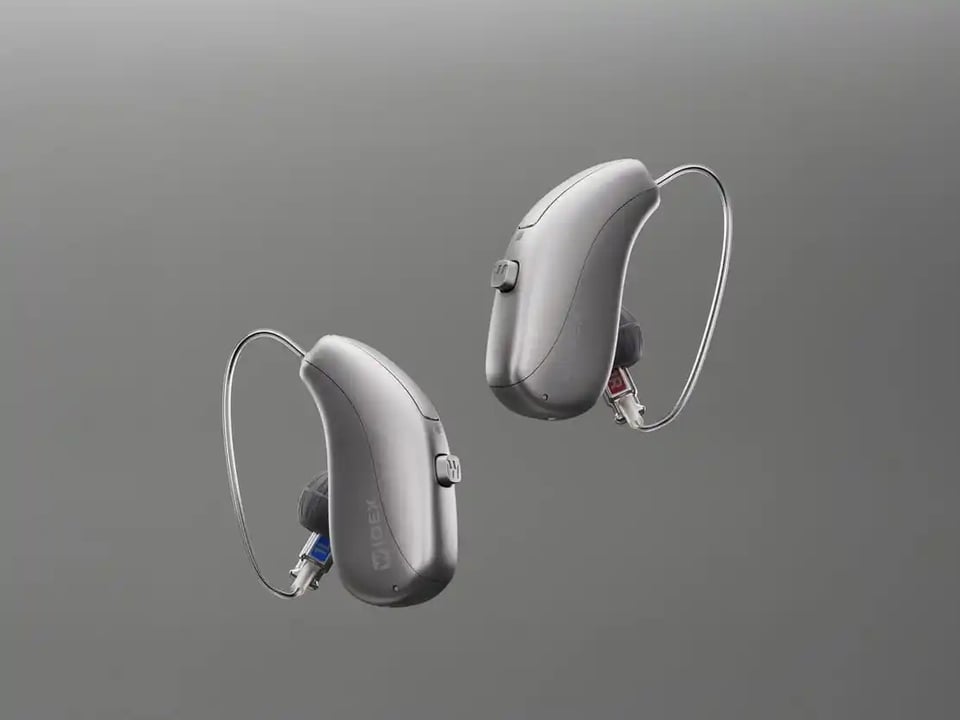
Widex (Widex Allure or Widex Moment App)
Current Widex models are Made for iPhone, and many support direct streaming on compatible Android phones.
iPhone
- Settings > Accessibility > Hearing Devices.
- Restart aids.
- Pair when they appear.
- Download the Widex app for your model (Widex Allure for the newest range, Widex Moment for earlier models).
Android
- Settings > Connected devices > Hearing aids.
- Restart and pair.
Common Widex issues: Widex aids often need a firmware update before ASHA works properly on Android. If you can’t pair, bring them in and we can update the firmware in clinic.
When Hearing Aid Bluetooth Just Won’t Connect
If you’ve followed the steps above and you’re still stuck, these are the usual causes.
Phone updates have broken compatibility. Major iOS and Android updates occasionally disrupt hearing aid connections until the phone or hearing aid maker releases a fix. Unpairing, restarting the phone, and re-pairing often sorts it out. If you updated your phone recently and Bluetooth stopped working, that’s likely the culprit.
Your hearing aids need a firmware update. Manufacturers release firmware updates to fix bugs and add compatibility for new phone models. If your aids are more than a year old and have never been updated, book a quick appointment and we can connect them to the manufacturer’s software and check for updates.
You’re trying to pair in the wrong menu. This is the big one. For most MFi and ASHA hearing aids (Phonak’s classic Bluetooth models are the exception), you must pair through the Accessibility or Hearing Devices menu, not the regular Bluetooth settings. If you pair them as a standard Bluetooth device, they’ll connect but won’t stream audio or take calls.
The aids are already paired to another device. Many hearing aids can remember several devices but stream from only one at a time. If your aids are paired to your iPad and your iPhone, and the iPad is nearby, they might automatically connect to the iPad instead. Turn Bluetooth off on the other device or “forget” the hearing aids from it.
Android permissions haven’t been granted. On Android, the hearing aid app needs location, Bluetooth, and sometimes phone permissions to work. If you denied any of these during setup, the app can’t control the aids. Go to Settings > Apps > [app name] > Permissions and enable everything it asks for.
The hearing aids are faulty. If one aid pairs and the other doesn’t, and you’ve tried everything above, the non-pairing aid may have a hardware issue. Bring it in so we can test it.
When to Book an Adjustment Instead of Troubleshooting at Home
Pairing problems are usually fixable at home, but if your hearing aids connect successfully and you still can’t hear phone calls or streamed audio clearly, that’s a programming issue, not a pairing issue.
If voices sound muffled, tinny, or too loud when you’re on a call, we need to adjust the streaming program in the fitting software. If you can hear streaming audio but not phone calls, or vice versa, that’s also a fitting adjustment. Same if you hear an echo of your own voice during calls, or if the aids make Bluetooth connection sounds so loud they’re startling.
These aren’t things you can fix in the app. They need adjustments to gain, compression, and streaming-specific settings in the fitting software. Book a follow-up appointment and we’ll sort it.
A Note on “Hands-Free” vs “Audio Only”
This confuses a lot of people. Hands-free calling means the hearing aids’ microphones pick up your voice during a call, so you don’t need to hold the phone. Audio-only streaming means you hear the caller through your aids, but you still need to speak into the phone.
Which one you get depends on the hearing aid and the phone. Phonak’s classic Bluetooth models are designed for hands-free calls on both iPhone and Android. ASHA on Android is audio-only by design, because it streams in one direction. With Made for iPhone hearing aids, and with newer LE Audio models, hands-free support varies by model and phone, so ask us to check yours.
If you’re not sure which mode you have, make a test call and walk away from your phone. If the person on the other end can still hear you, it’s hands-free. If they can’t, it’s audio-only.
Still Stuck?
Modern hearing aids are small computers, and like all computers, they occasionally need a restart or a software update. Most pairing issues resolve with the steps above, but if you’re still stuck after trying them, don’t waste hours searching forums. Book a quick appointment: we’d rather fix it in clinic than have you miss calls because you’re too frustrated to use the Bluetooth feature you paid for.
And if you’re shopping for hearing aids and smartphone connectivity is important to you, bring your phone to the appointment. We’ll pair it before you leave and make sure it actually works with your device, not just in theory.